Mission Monitoring
When you submit a job via the Client Dashboard, you can monitor exactly where your project is in the execution pipeline. Understanding these states helps you track your render's progress from upload to final delivery.
Dashboard Statistics
At the top of your Client Dashboard, you'll see four critical metric cards:
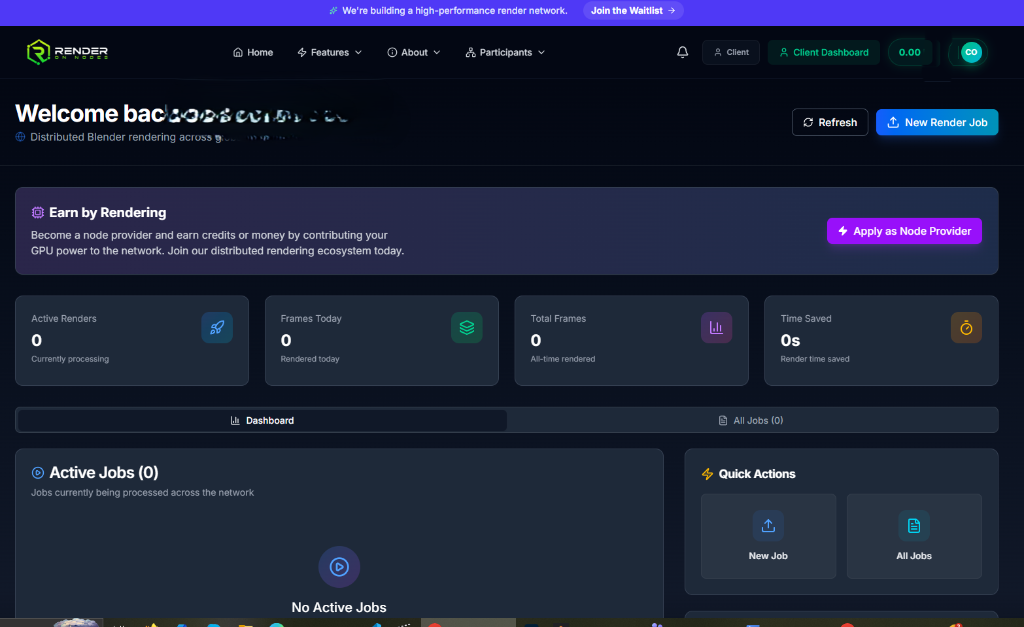
- Active Renders: The number of jobs currently processing on the network.
- Frames Today: The total number of individual frames completed and verified in the last 24 hours.
- Total Frames: Your lifetime render history on RenderOnNodes.
- Time Saved: An estimation of the physical time you have saved by utilizing massive parallel distribution instead of rendering locally.
Job Status Indicators
Under the Active Jobs section, or by clicking into a specific job from the All Jobs ledger, you will see a status badge. Jobs transition automatically through these states:
1. 🟡 Staging / Uploading
You have submitted the job, and the file is currently being transferred from your browser to the platform's secure asset storage layer.
2. 🔵 Queued / Matched
The network has received the file and is currently analyzing your task to break it up into frames. The distribution engine is actively matching execution agents with the hardware required to handle your scene.
3. 🟢 Processing (Active)
Your job has been partitioned and sent to global agents. You will see a progress bar indicating how many frames are complete versus how many total frames exist in your job. This is when the network is actively crunching your numbers.
4. 🟣 Verifying
The execution agents have finished rendering, but the platform is mathematically verifying the results to ensure no artifacts, tampering, or errors occurred during processing.
5. ✅ Finalized
The render is complete, verified, and settled. You may now click into the job details and securely download the final files.
Troubleshooting Failures
If a job returns a FAILED state:
- This generally means the
.blendfile was corrupted, missing external textures, or crashed the rendering engine on multiple distributed agents. - Action: Check your local file. Ensure you used the Pack All Into .blend feature in Blender. Then, submit a new job.
- Rest assured, you are not charged RON for jobs that fail on the network side. Your compute credits are only deducted upon verified completion.