Setup & Installation
Connecting your hardware to the RenderOnNodes network is designed to be frictionless. This guide walks you through the exact steps to register your node and start rendering.
Step 1: Configure Your Payout Wallet
Before your hardware can accept rendering jobs, you must tell the network where to send your earnings.
- Navigate to the Provider Dashboard on the RenderOnNodes web portal.
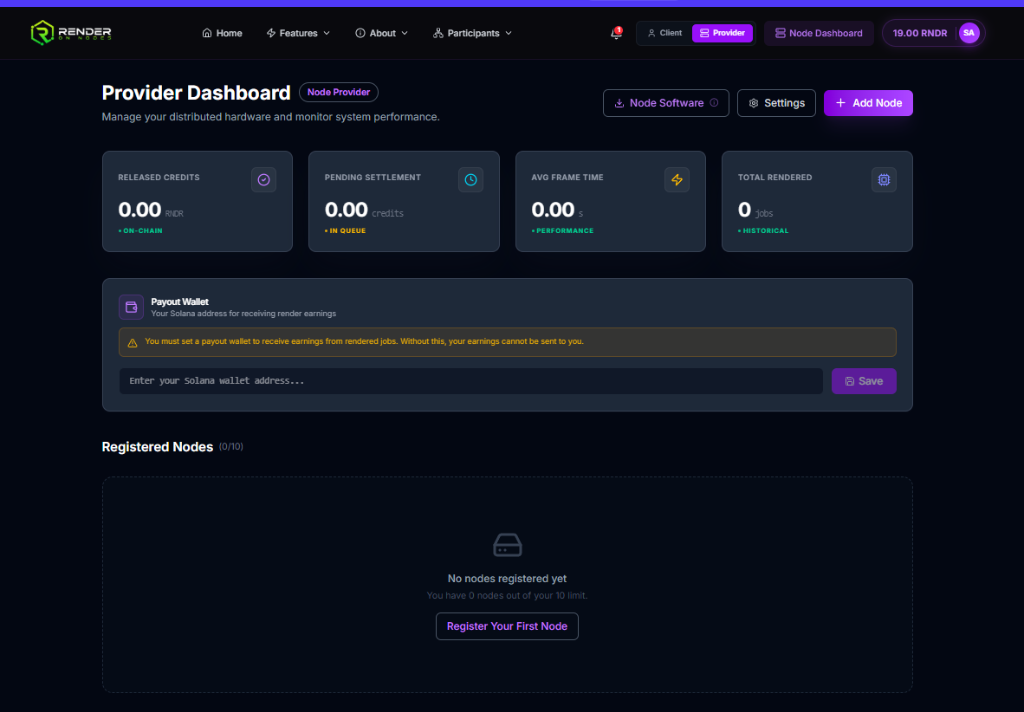
- Under the Payout Wallet section, locate the input field marked "Enter your Solana wallet address".
- Paste your public Solana wallet address (e.g., from Phantom or Solflare).
- Click the purple Save button.
If you do not set a Payout Wallet, the network will prevent your node from receiving jobs. You must complete this step first.
Step 2: Download the Execution Agent
The RenderOnNodes Execution Agent is the lightweight desktop application that connects your GPU to the network.
- On the Provider Dashboard, click the Node Software button located at the top right, next to Settings.
- Download the appropriate version for your operating system (currently optimized for Windows).
- Run the installer and launch the application.
Step 3: Register Your Node
Once the Execution Agent is running on your local machine, you need to link it to your web account.
- Return to the web Provider Dashboard.
- Click the purple + Add Node button at the top right.
- Follow the prompt to generate a secure pairing key.
- Copy this pairing key.
- Open the Execution Agent on your desktop, paste the pairing key into the configuration screen, and click Connect.
Step 4: Start Earning
Once connected, your node will appear in the Registered Nodes list at the bottom of your web dashboard.
The Execution Agent will immediately begin evaluating your hardware performance. Once validated, your node's status will change from "Validating" to "Active", and the network will begin routing render jobs to your machine.
No further action is required. As long as the agent is running and your machine is online, you will automatically process jobs and earn RON.